-

Software Development
A perfect combination of innovation, flexibility and adaptability and ease makes our software the ideal solution for any type of business (small or large sized).
Our objective is to provide the most excellent and brilliant software solutions to our customers. Read More -

Web Development
The Internet is an active and ever changing environment and we create plans that fit within your needs and budget.
We offer full support to your web design to make it informative and attractive. Read More -

Mobile Apps
We offer complete package provides our valuable customers with mobile applications that utilize the full extent of mobile applications programming for Android, BlackBerry, iPhone, Windows Mobile, Kindle, and Symbian, amongst others. Read More
- 1
- 2
- 3
Windows 8 Interesting Tips & Tricks
Did you know??
Make the most of your Windows Start screen tiles by adjusting the sizes, where they are located, and what is listed.
• Move any tile by clicking and dragging the tile. While moving a tile, if you need a larger view of the Start screen move the tile towards the top or bottom of the screen to zoom out.
• Use your mouse wheel to scroll left-to-right through your tiles.
• Any Desktop shortcut or program can be pinned to the Start screen by right-clicking the icon and choosing Pin to Start.
• In the bottom right-hand corner of the start screen is a magnifying glass with tiles, click this icon to get a zoomed out view of your Start screen. In this view, if you right-click on a group of tiles you'll be given the option to name group, which can be useful if you have a group of related tiles (e.g. games). In this view, you can also click and drag a group to organize your tile groups.
• Create a new speed bump between tile groups by moving a tile to a speed bump.
• Resize any User tile or Live tile by right-clicking the tile and choosing resize.
• If there is a tile you want on your Taskbar, right-click the tile and choose Pin to taskbar.
• Show admin applications on the Start screen by clicking Settings in Charms, click Settings, and change the Show administrative tools from No to Yes.
• In Internet Explorer 10, you can also pin any of your favorite web pages to your Start Screen.
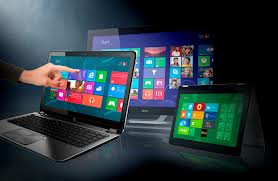
Windows 8 keyboard shortcuts
Knowing at least some of the Windows 8 keyboard shortcuts will make your Windows 8 experience much more enjoyable. Try to memorize these top Windows 8 shortcut keys.
• Press the Windows key to open the Start screen or switch to the Desktop (if open).
• Press the Windows key + D will open the Windows Desktop.
• Press the Windows key + to pin and unpin Windows apps on the side of the screen.
• Press the Windows key + X to open the power user menu, which gives you access to many of the features most power users would want (e.g. Device Manager and Command Prompt).
• Press the Windows key + C to open the Charms.
• Press the Windows key + I to open the Settings, which is the same Settings found in Charms.
• Press and hold the Windows key + Tab to show open apps.
• Press the Windows key + Print screen to create a screen shot, which is automatically saved into your My Pictures folder.
By ATech Systems
Disclaimer: Any hardware/software damage is solely at your responsibility while using any of the tips & tricks.